
Solution 1
My Garage and a demand report
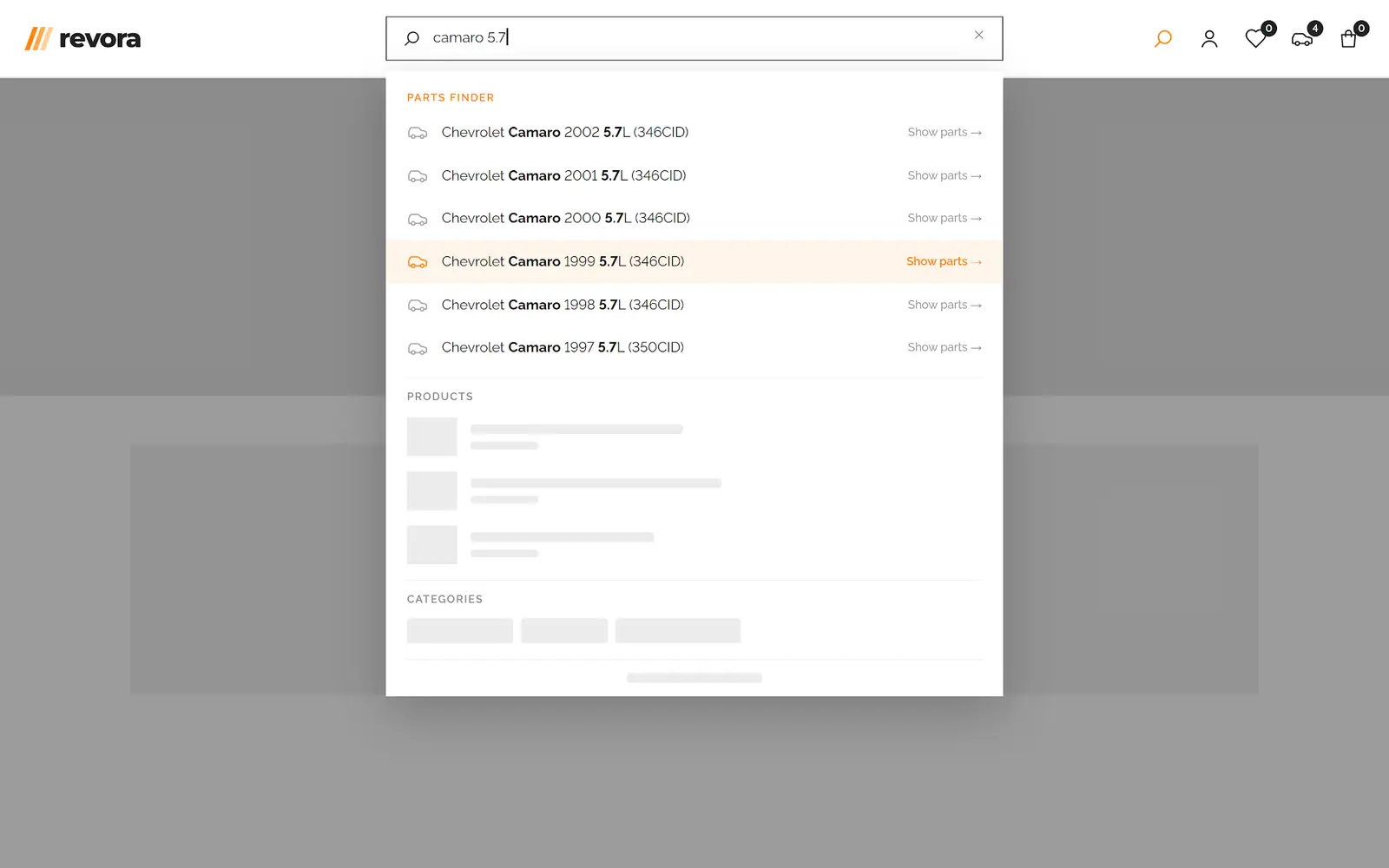
Part selection in the store is built on a ready-made parts finder module: the buyer picks make, model, year and engine and gets a list of matching parts. We built My Garage into it, so buyers don't have to go through four dropdowns on every visit, and so the store learns which vehicles people are shopping for.
For the buyer
- A registered buyer's vehicle is saved to the garage automatically as soon as they run a search in the finder. No separate "save" button is needed.
- A garage icon with a counter sits in the site header. Its dropdown lists saved vehicles, and one click takes the buyer back to the parts selected for that vehicle.
- The customer account has a My Garage page: vehicles are shown as tiles with images, extra ones can be removed, and a new one can be added through a window with the finder fields.
- Guests can use the garage too. Their vehicles are kept in the browser and move to the account automatically after login or registration.
For the store team
- The Top My Garage report in the admin shows the most popular make, model, year and engine combinations and how many customers have each one saved. It can be filtered by period and by finder.
- The same report can be opened to selected customer groups in the Reports tab of their account.
- The garage is switched on and configured per finder: name, guest access, default image, report settings.
How it works
- The garage stores the original finder selection, not a copy of the vehicle data. Labels, images and result links are built by the finder module every time, so a garage link leads to the same page as a fresh search, and renamed entries in the reference data are picked up automatically.
- Saving is built into the finder form without changing the third-party module's code. If saving fails for any reason, the search still runs.
- Garage data loads separately from the page, so the catalog is still served from the full-page cache and the site keeps its speed.